You can set up tax details for a specific product or override the global tax settings you established earlier right in your checkout. Here’s how to do it:
- Go to Store → Products.
- Choose a product from a list or create a new product by clicking + New product.
- Then, in your checkout configurator, go to Product → Price variants.
After selecting the variant you want to edit tax details for, you’ll see a menu on the left. The tax settings are located just below the Price field.

Tax handling
There are two ways you can display and handle taxes in your checkout:
- Tax excluded - We will calculate the tax amount based on your tax settings and customer location and add additional tax to your product price.
- Tax included - We will charge customers the exact set price.
If you set your price at $119 with tax excluded, your customer will pay $119 plus tax.
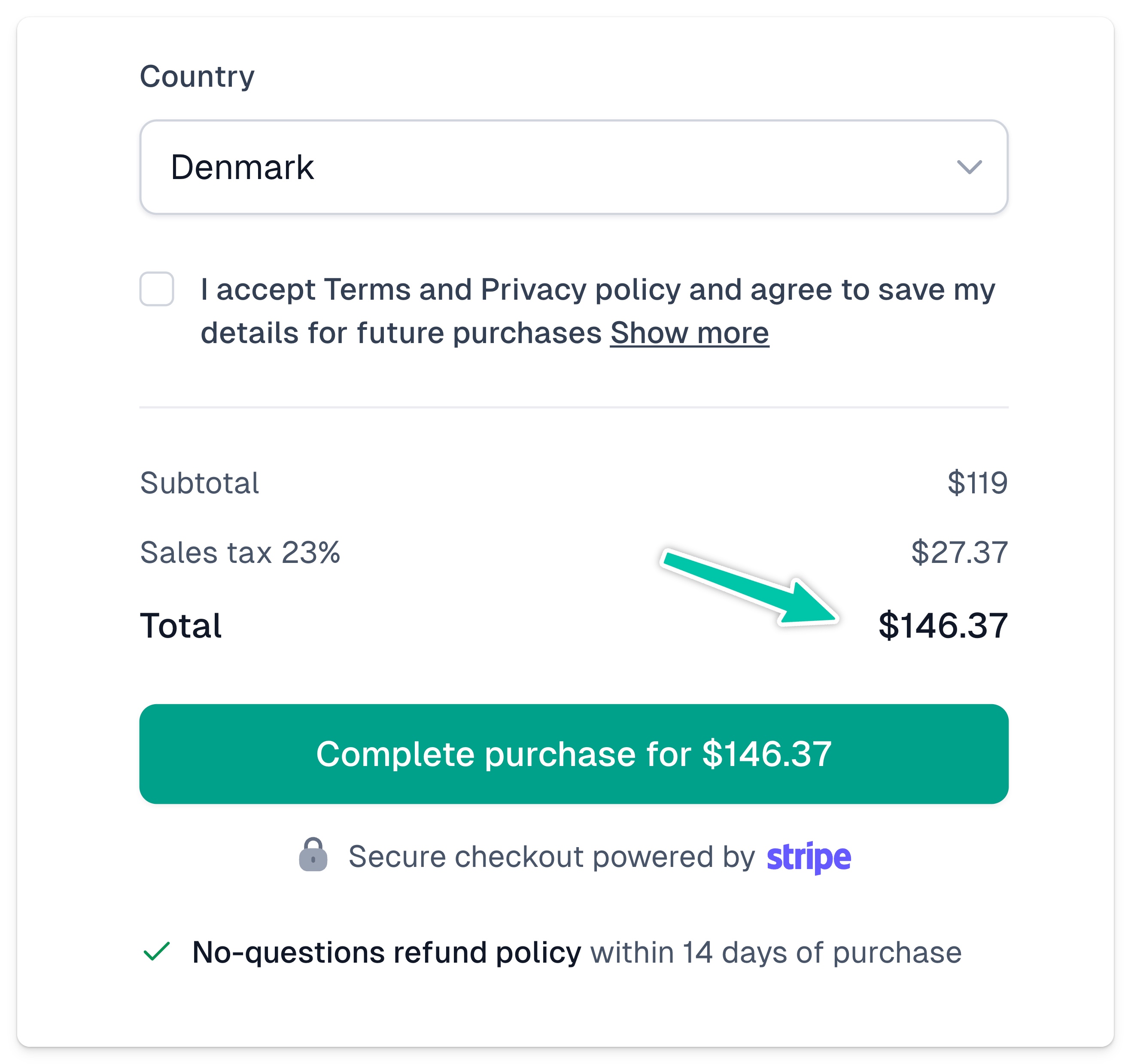
If you choose tax included, your client will pay $89, but your earnings will be reduced by the tax amount.

General tax category
You can also assign your General tax category here in your checkout - we will use it for more accurate sales calculation. Just select your product type from the list:
- Software as a Service
- Digital Books
- Self-Study Online Courses
- Instructor-Led Online Courses
- Digital Goods
- Professional Services
- Nontaxable Services
- Physical Goods
- None of the Above
Important: If you set up your General tax category in your checkout, it will override your global tax settings. This allows you to assign different settings to different product types.