With EasyFAQ, you can create a section of frequently asked questions for your website or landing page. This significantly reduces the number of inquiries to your customer support. A well-organized FAQ benefits not only your customers but also you, helping you save time.
Generate a FAQ section for a selected product
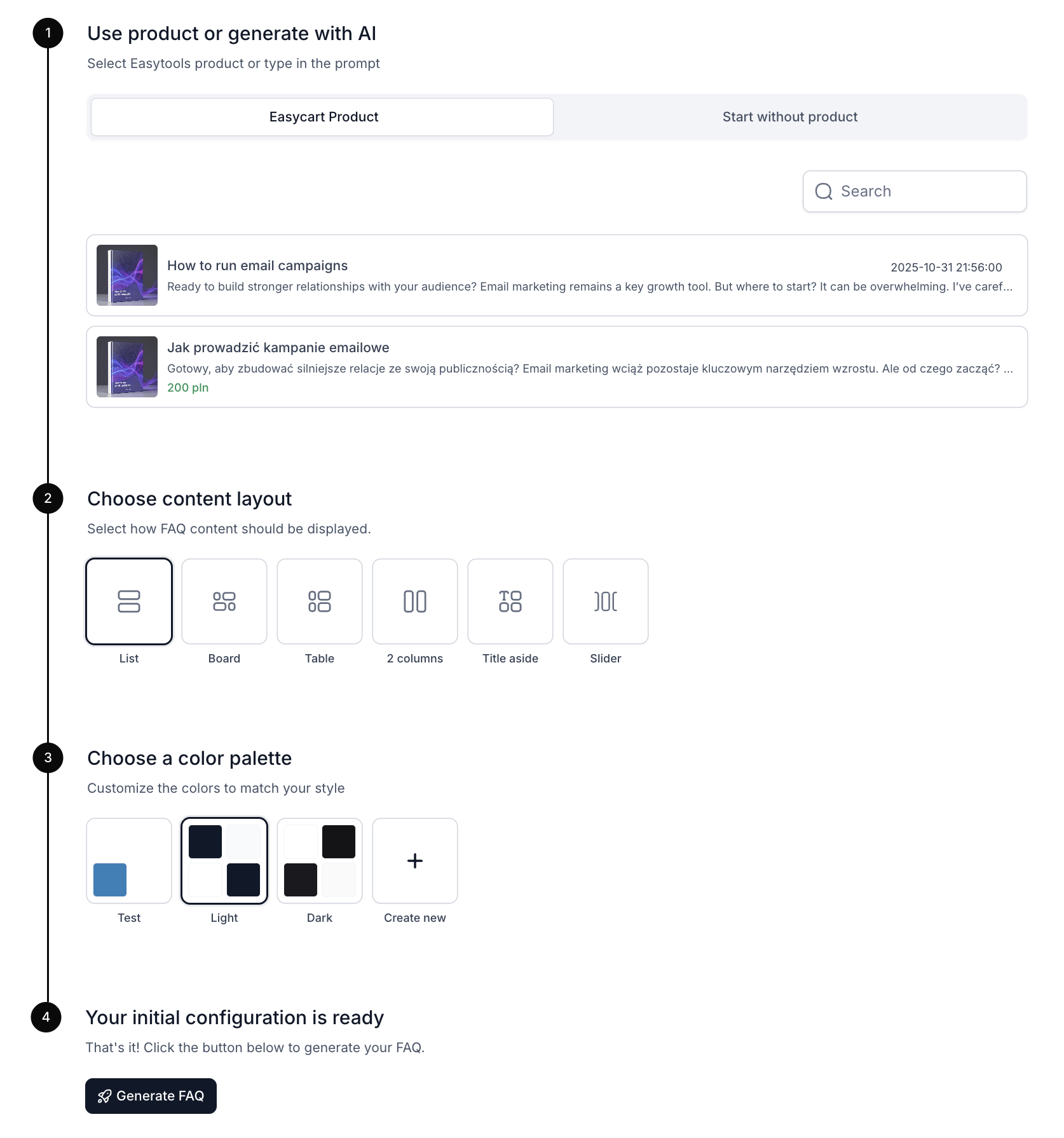
- Go to Create Project in EasyFAQ, under the tab Websites → FAQ Section
- Click + New FAQ Section
- Select the Easycart Product option.
- Choose the content layout.
- Pick one of the default color palettes or create your own theme.
- Click Generate.
Editing the FAQ section
Based on the product name and description, EasyFAQ will generate sample questions and answers that you can edit. You can also add your own sections (categories) and questions.
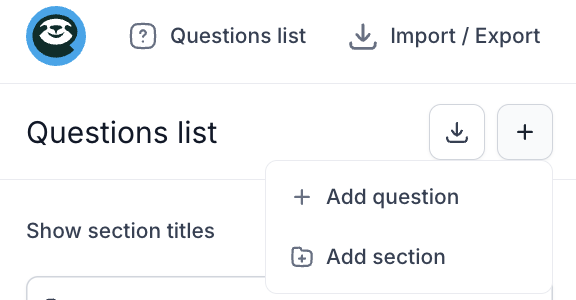
You can also edit the layout, choosing the view type and text alignment: left, right, or center. In the Style tab, you can set colors for the text, background, and borders. Additionally, you can adjust the font, as well as the title size and body text size.
Generate a FAQ section with AI
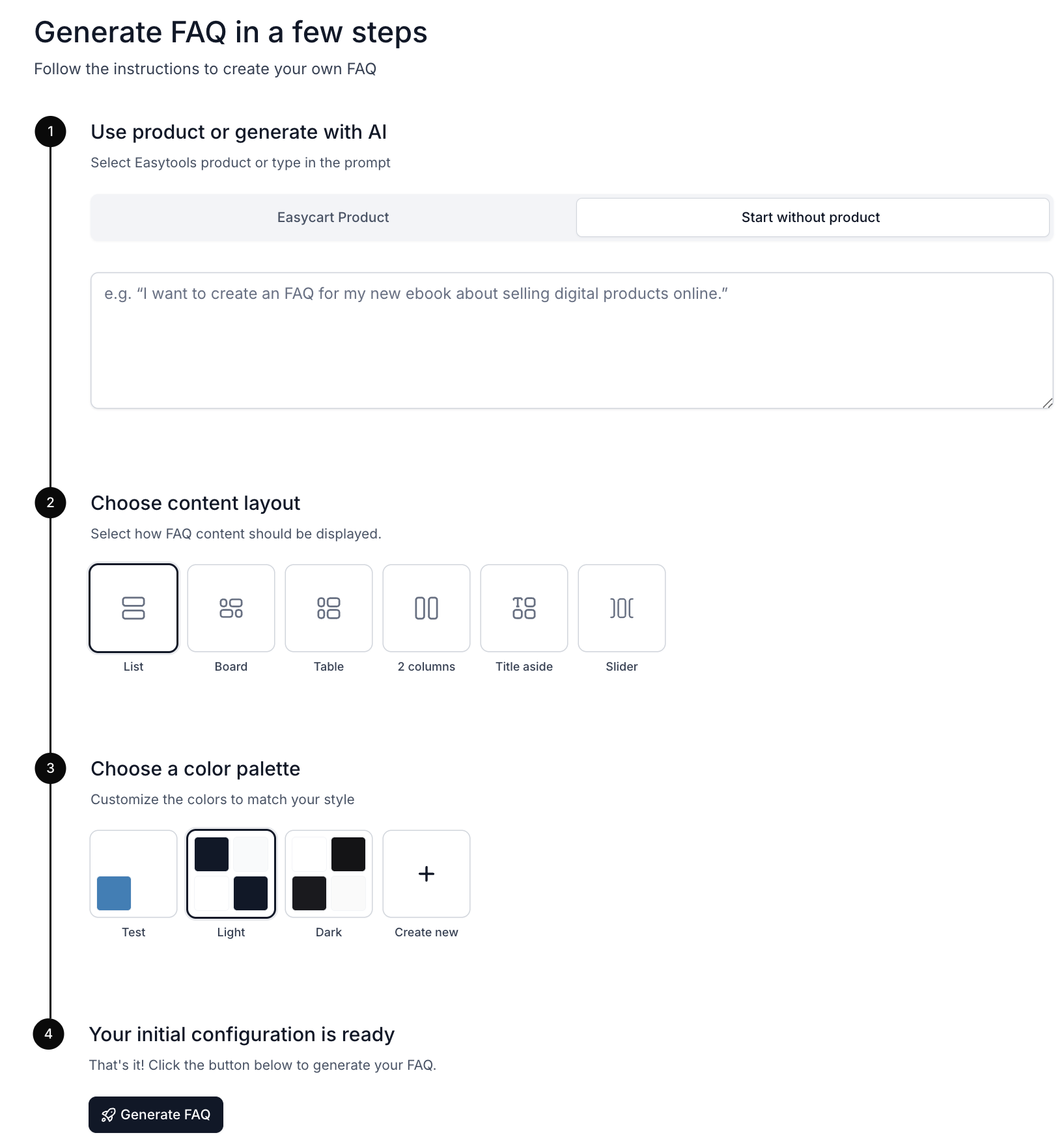
- Go to Create Project in EasyFAQ, under the tab Websites → FAQ Section
- Click + New FAQ Section
- Select Start without a Product.
- In the input box, enter a prompt describing the product and the desired appearance of the FAQ section.
- Choose the content layout.
- Pick one of the default color palettes or create your own theme.
- Click Generate.
AI-generated FAQ sections work asynchronously, so you don’t have to wait for the project to be created. You can exit the tool, and AI will continue generating the section in the background.