Now that you’ve probably added some files to your player, it’s time to focus on their presentation. Beyond customizing the visuals like colors and headlines, you can organize your files and even tweak the buttons to perfectly align with the type of infoproducts you’re showcasing.
Organizing your files
The most effective way to organize your lessons and make them more accessible for your students is by grouping them into categories. Here’s how you can do it:
1. Open the Files tab in your top menu.
2. Click the folder icon to add a new header
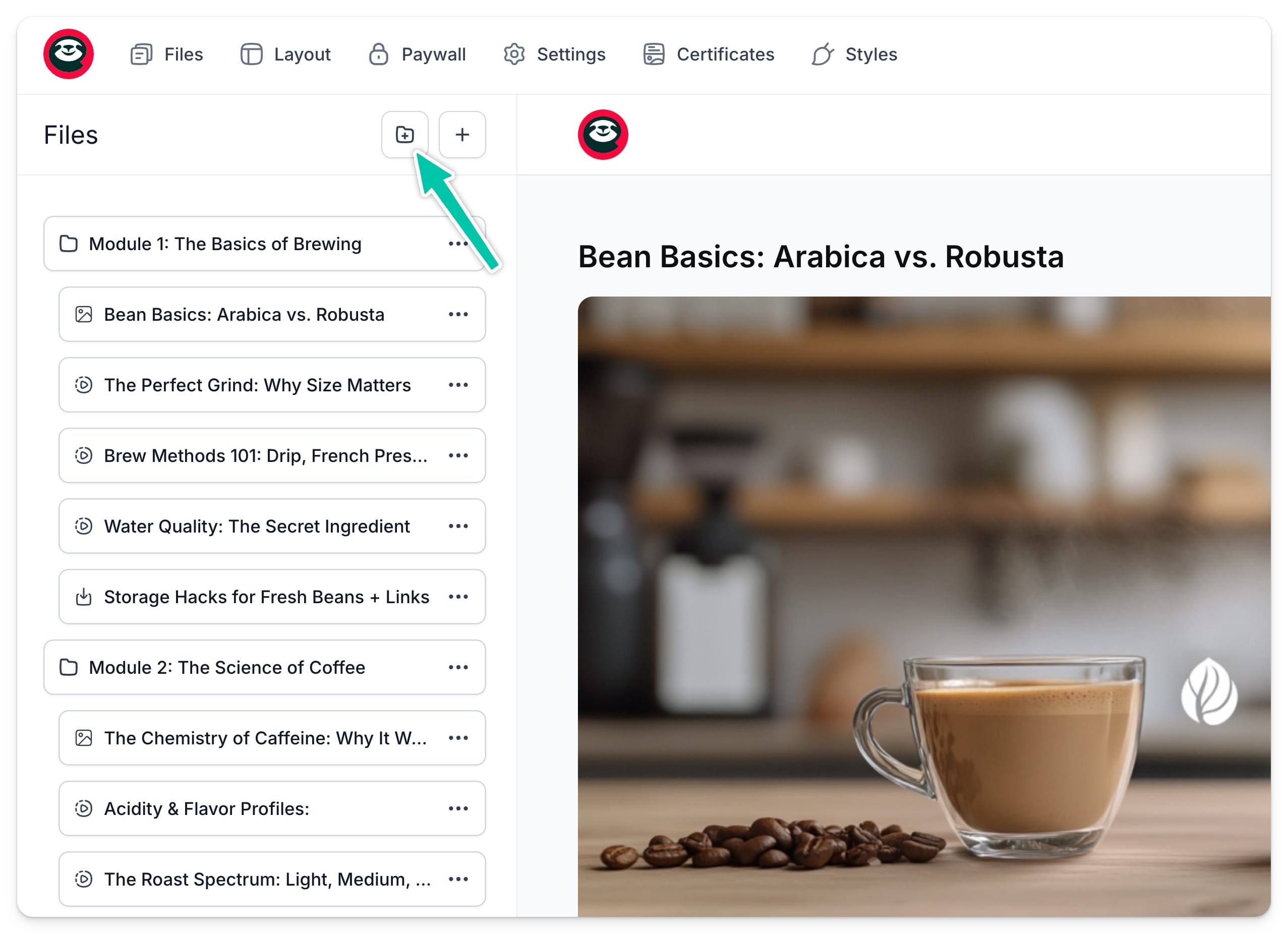
3. Enter the name of your category.
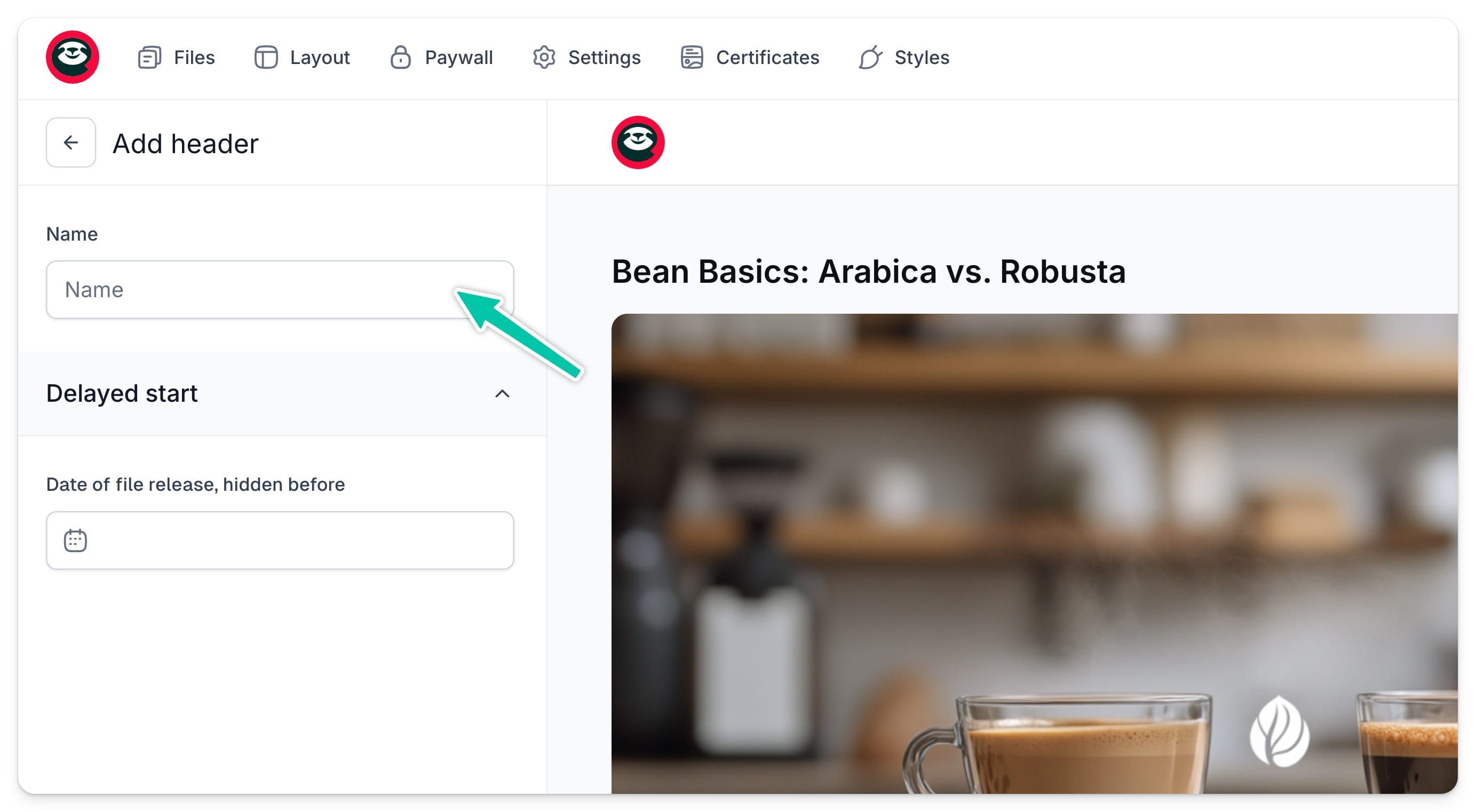
4. Click Create header.
You can also choose to delay the start of a category – just set a release date while creating a header, and it’ll stay hidden until then.
Your new header will now appear in your files list, marked with a folder icon. To place files under this header, simply drag them into place. You can preview how your files will be displayed in real time.
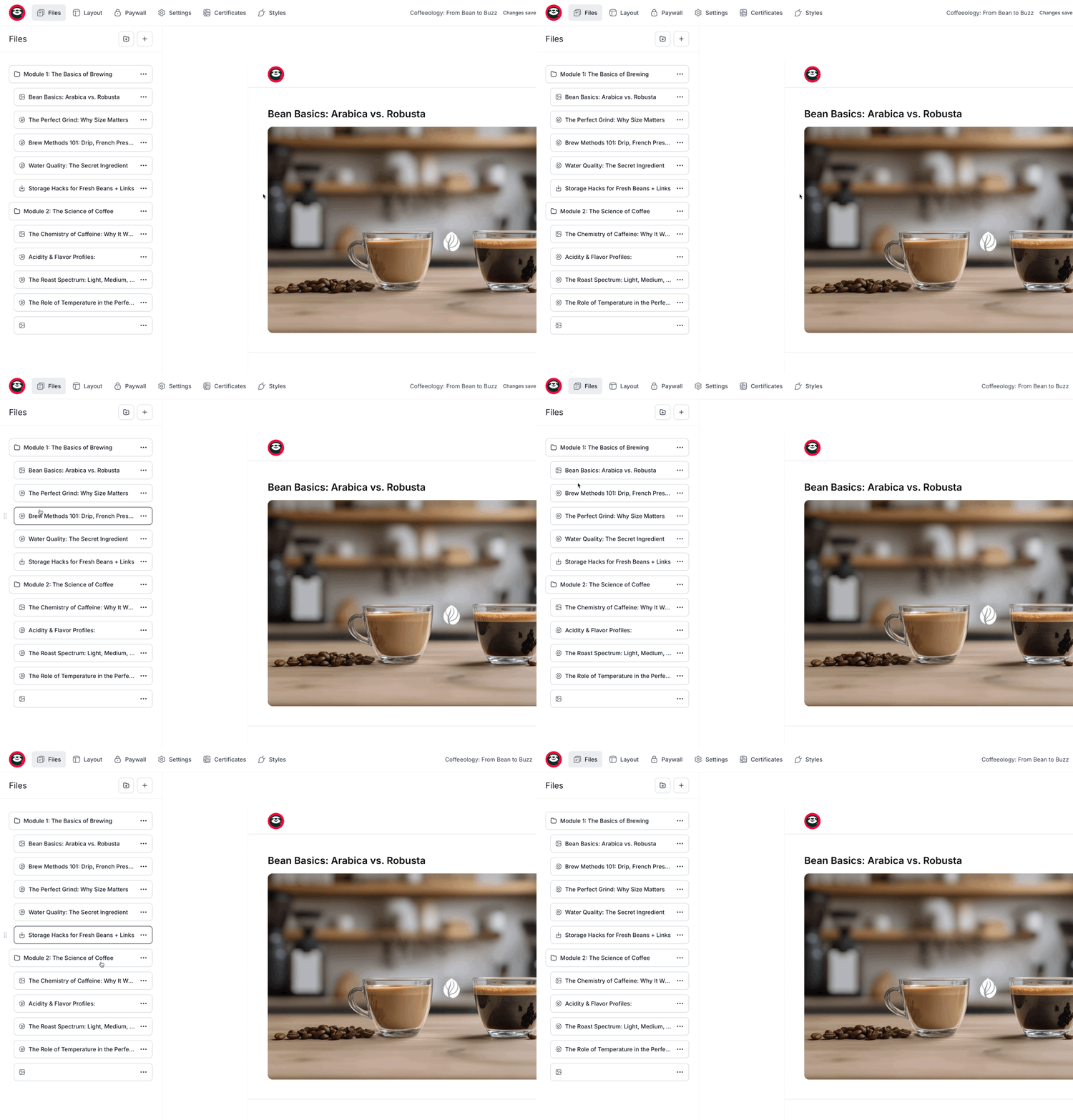
It’s a good practice to break your lessons into short, digestible segments, like brief video lessons, and organize them into categories. This makes it easier for students to engage with your materials.
Adjusting the layout
Once your files are neatly organized, let’s refine your player’s layout. Navigate to the Layout tab in the top menu.
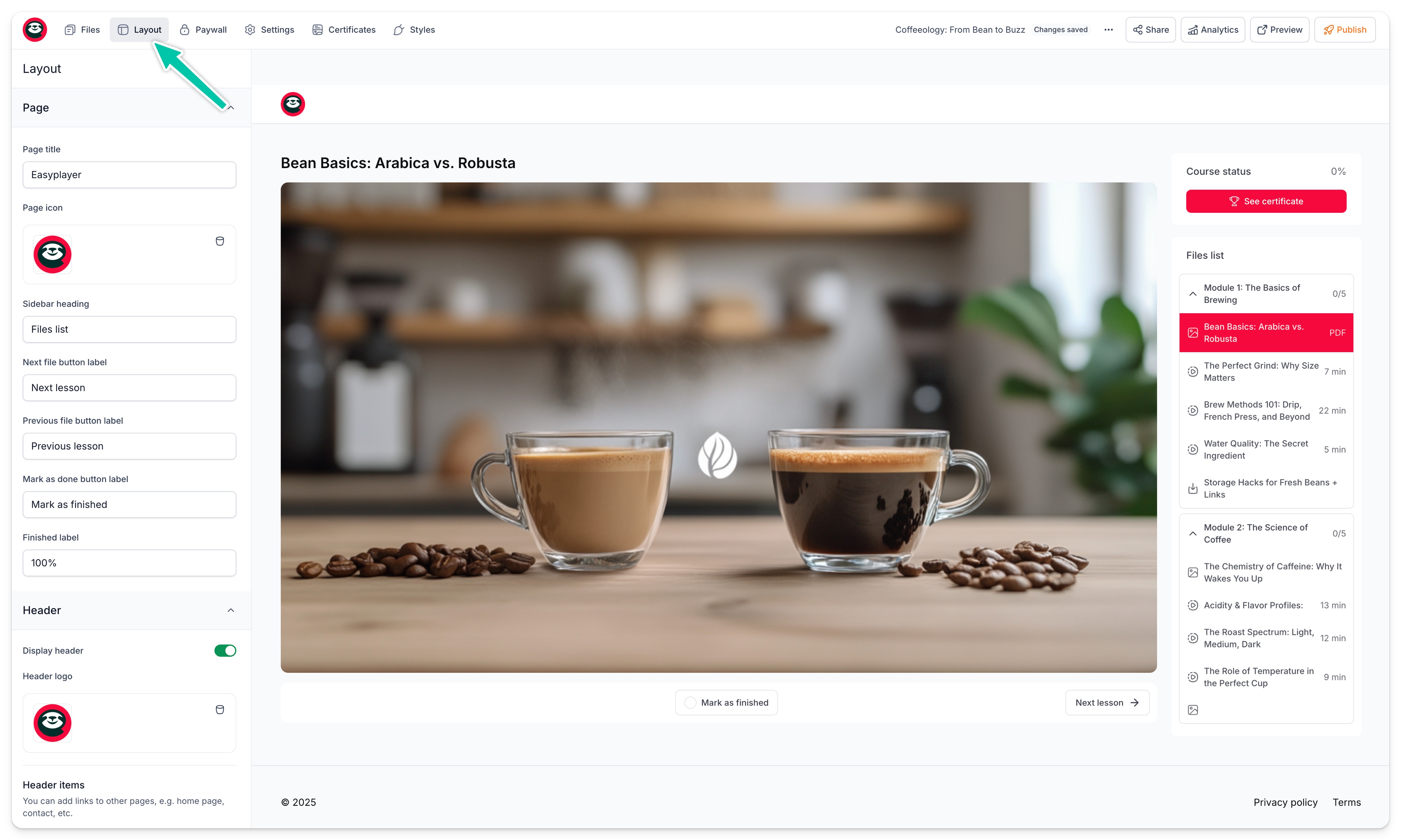
Here you can adjust various layout elements:
Page elements:
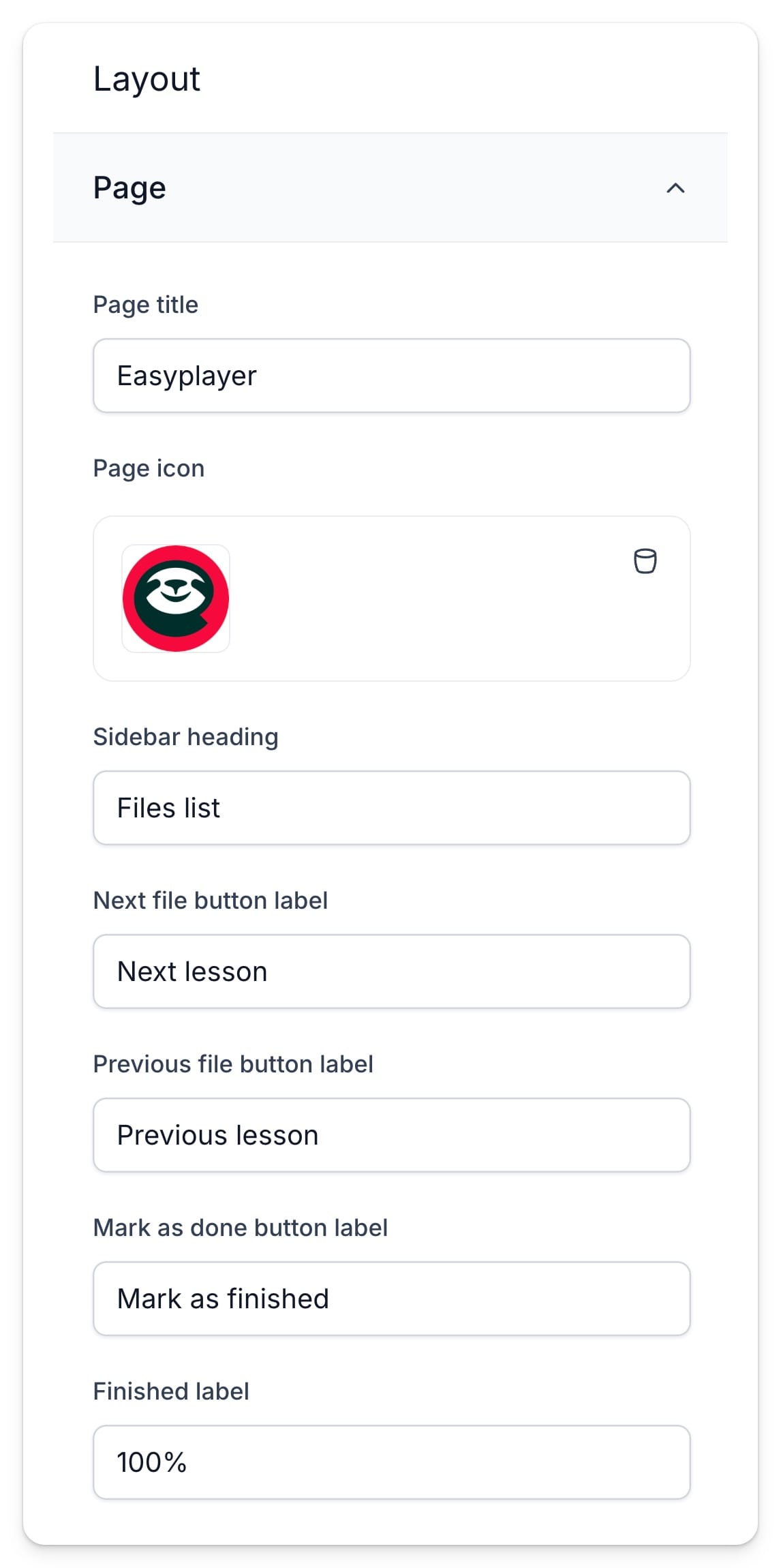
- Page title - the title of your player that appears in the browser.
- Page icon - the favicon displayed in the browser.
- Sidebar heading - a heading that appears at the top of your lessons list.
- Next and Previous file button label - customize these to suit your file type, e.g., “Next Lesson”.
Header:
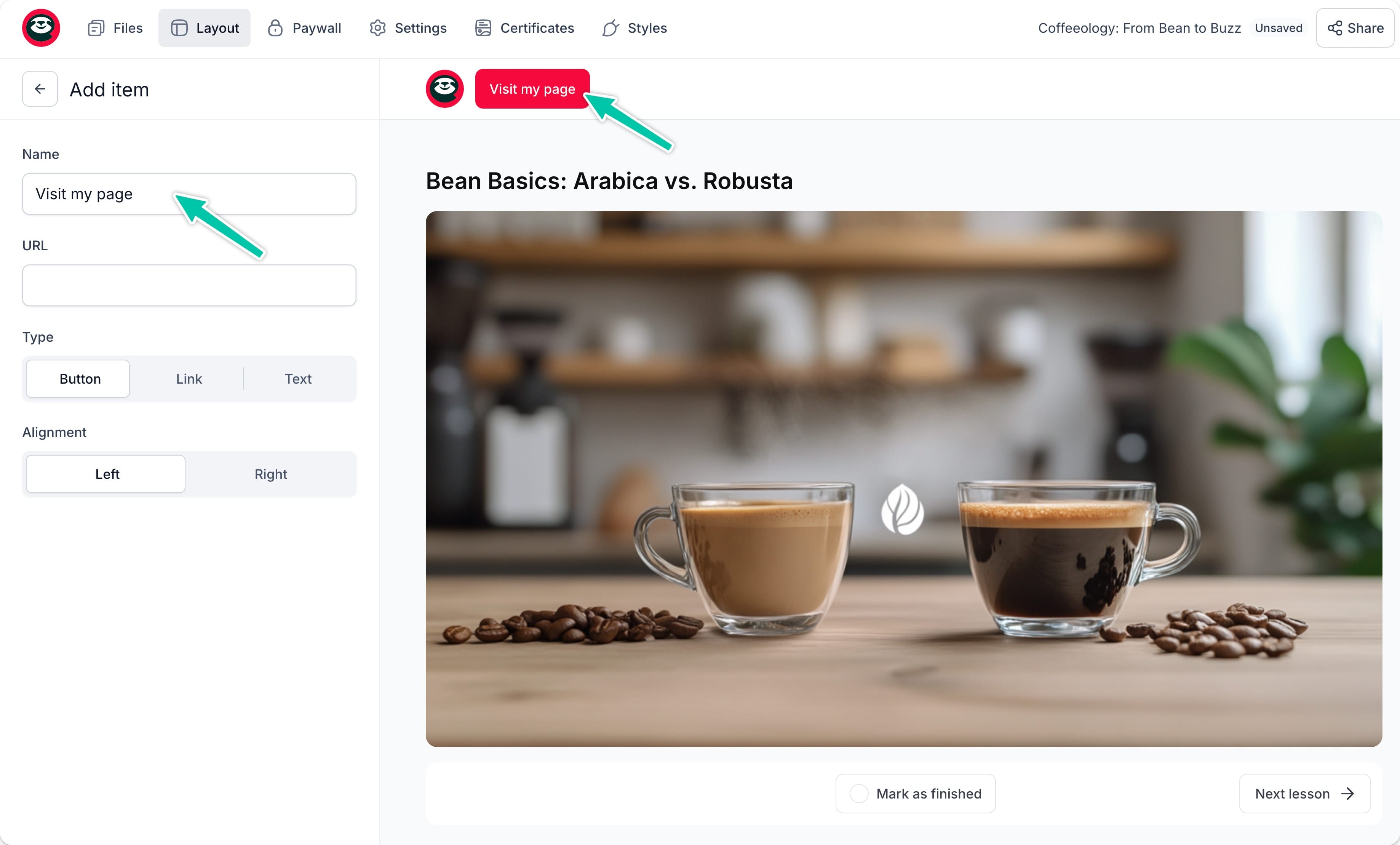
- Toggle the Display header option.
- Header logo - upload your logo to appear at the top of the player.
- Header items - these can be menu-like buttons, links, or text.
Footer:
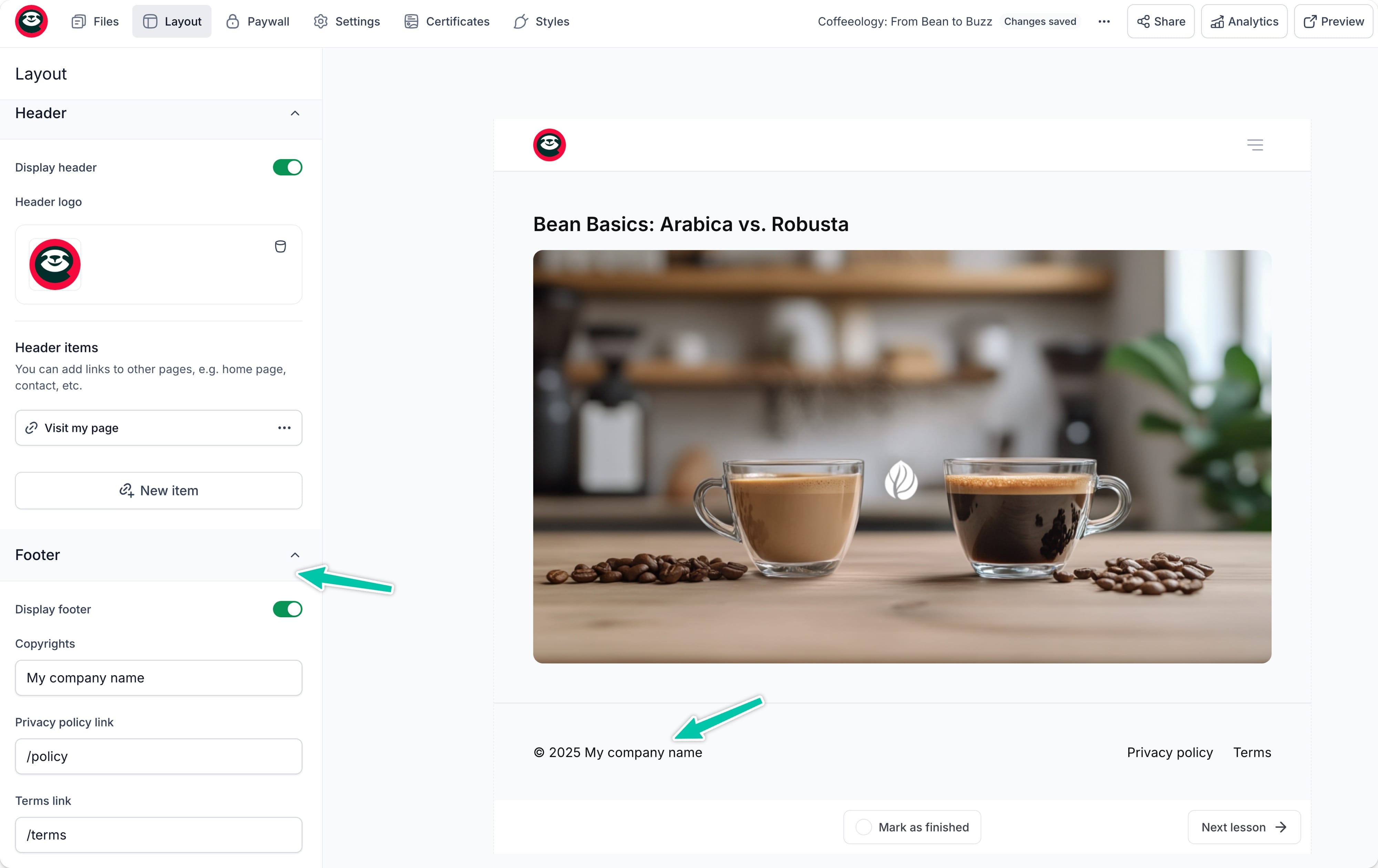
- Toggle the Display footer option.
- Copyrights - add your company name or your name if you hold the copyright.
- Privacy policy - link to your privacy policy.
- Terms link - link to your terms and conditions.
Adjusting player styles
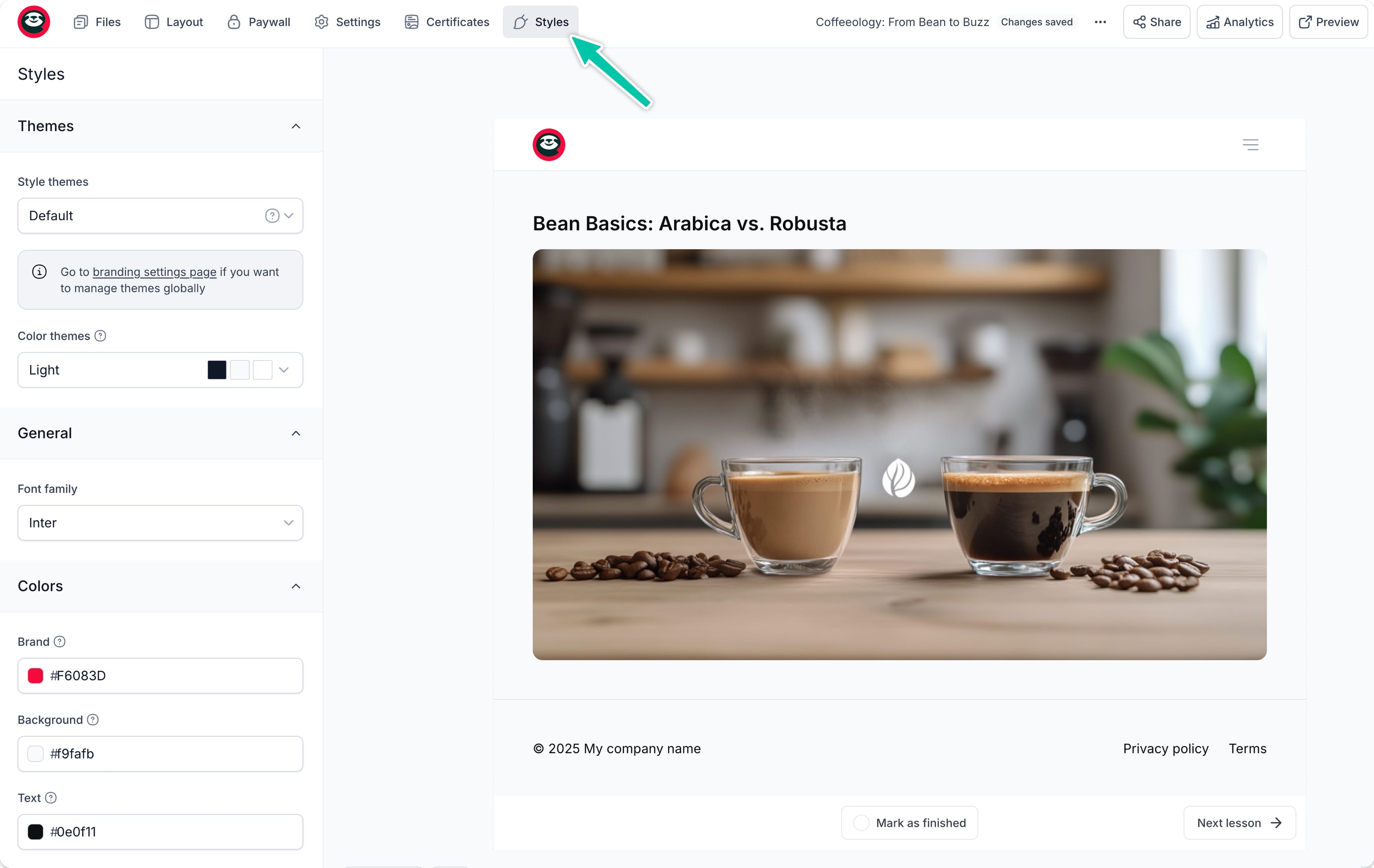
Now, let’s align your player’s appearance with your brand:
- Go to the Styles tab in the top menu.
- Choose one of our predefined Themes or
- Manually adjust the Colors of each element
- Choose a Font family.
- Click Save.
Any changes you make will show up immediately in the preview.