Easytools comes with built-in analytics to track sales and conversions, plus easy integration with your favorite tools via analytics codes. Here’s a quick guide on setting up global analytics settings – and how to override them for specific checkouts.
Integrated analytics tools
Here’s the list of analytics tools you can currently integrate with:
- Facebook (Meta) Analytics
- Google Analytics
- Google Ads
- TikTok Analytics
- LinkedIn Analytics
- Pinterest Analytics
- DataFast
Global analytics settings
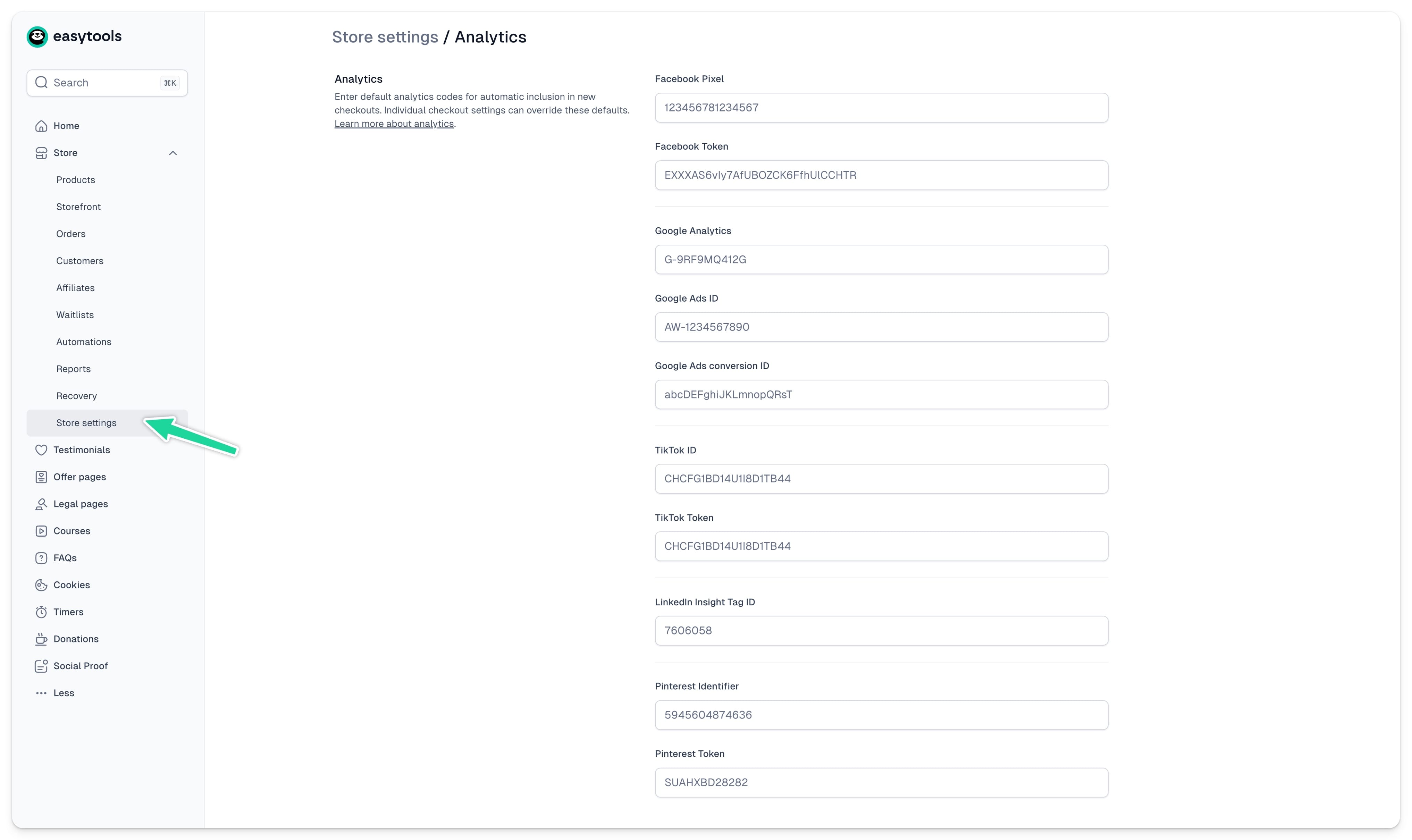
You can set up your analytics globally and automatically apply these settings to all your carts. Here’s how you can do it:
- Go to Store ➔ Store settings
- Open the Analytics tab
- Copy and paste your chosen analytics codes
- Click Save
Individual checkout settings
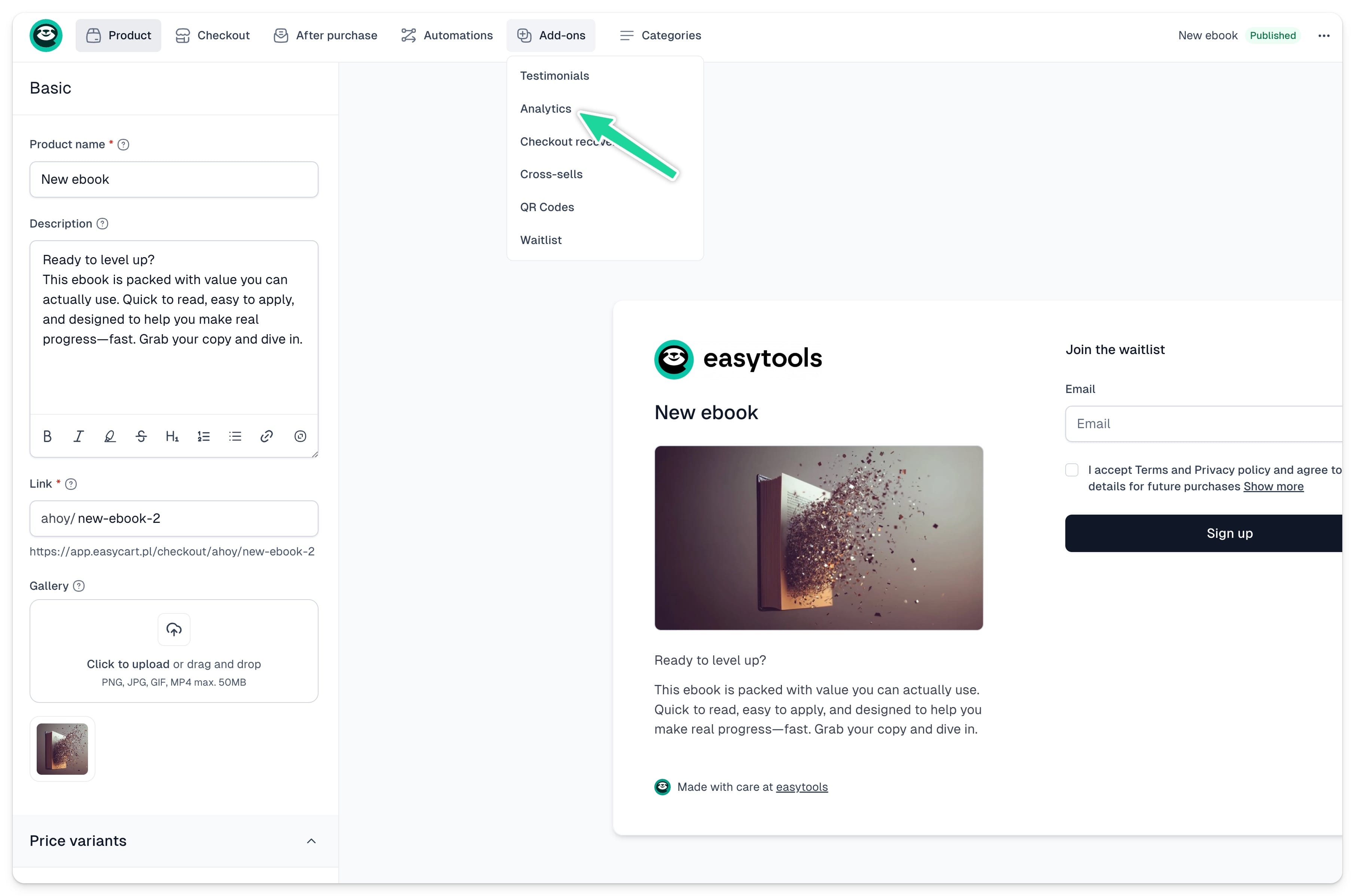
You can also choose to use different codes for different checkouts—for example, when setting up carts for several customers. To do this, open the product for which you want to override the settings and follow these steps:
1. In the top menu, choose Add-ons ➔ Analytics
2. Copy and paste your chosen analytics codes
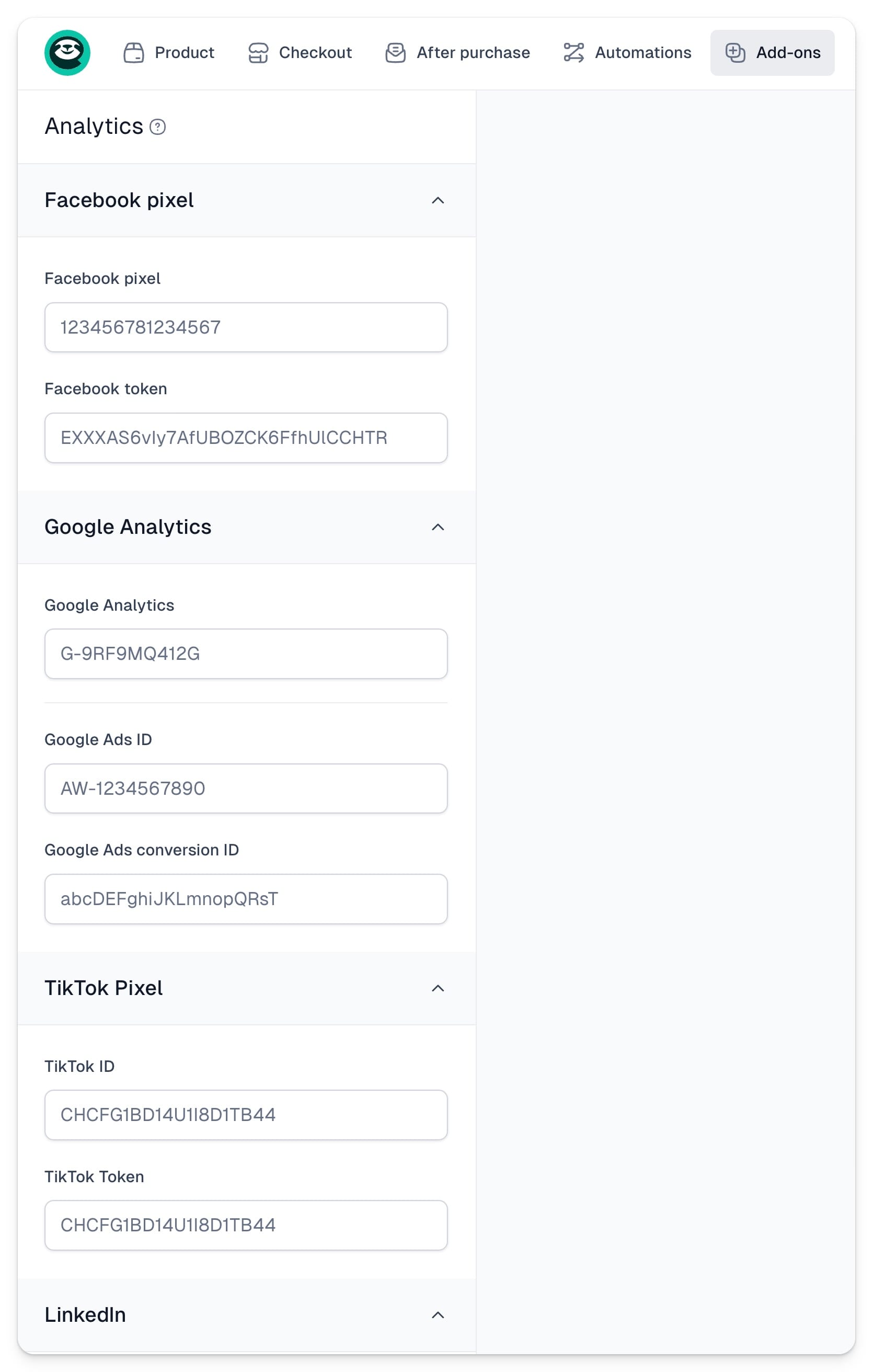
3. Click Save.
4. Make sure to publish your cart.
This way, even if you set up your analytic codes in global settings, this specific cart will override them and use different codes.
Important: If you start by setting up analytics codes at the cart level, there’s no way to import them automatically to the global settings—you will need to add those codes to each new cart. That’s why, if you’re selling your own products under the same brand, we recommend setting up the global settings.