By default, Easycart doesn’t display a field for entering a discount code, as it reduces conversion. Customers who see such a field often leave the cart to search for a code, which frequently results in unfinished transactions. Adding such a field to the cart also makes customers doubt whether they’re getting the lowest price.
Fortunately, we have several mechanisms that allow displaying a field for entering a code.
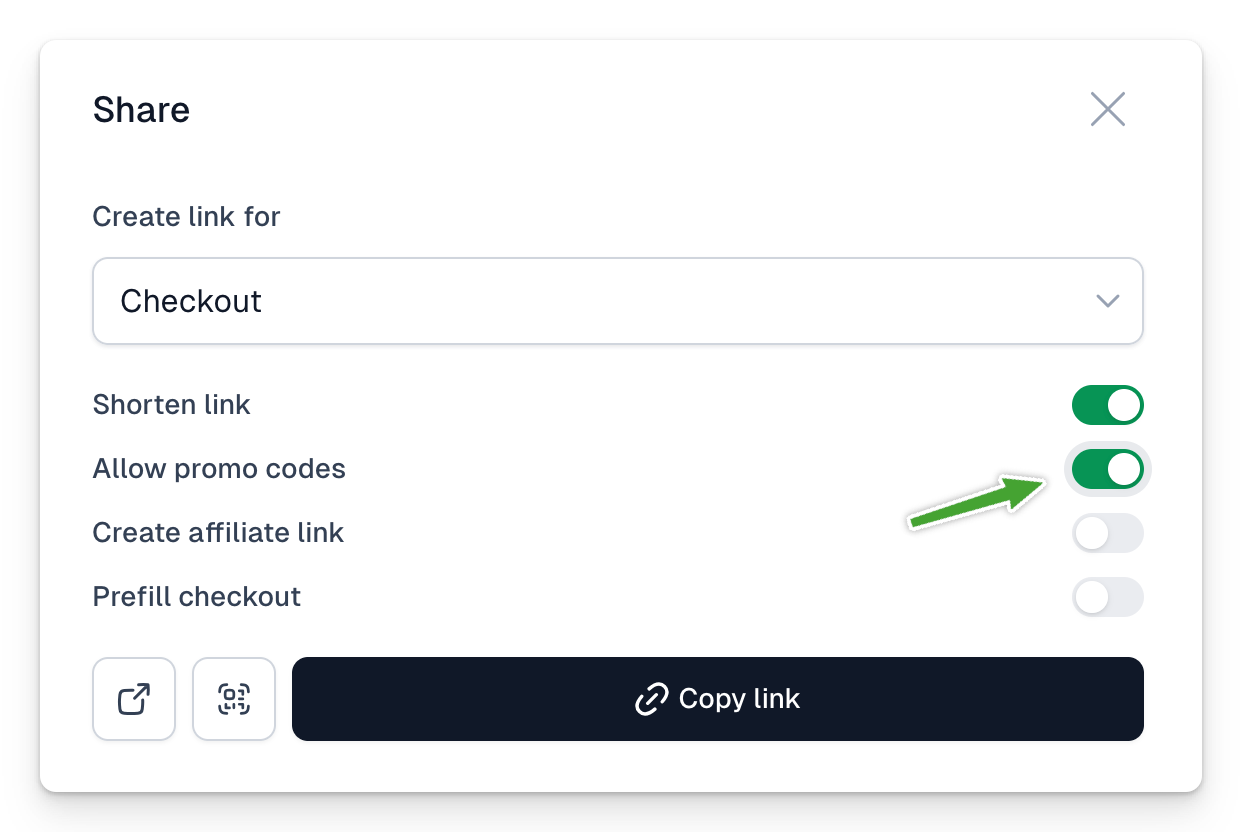
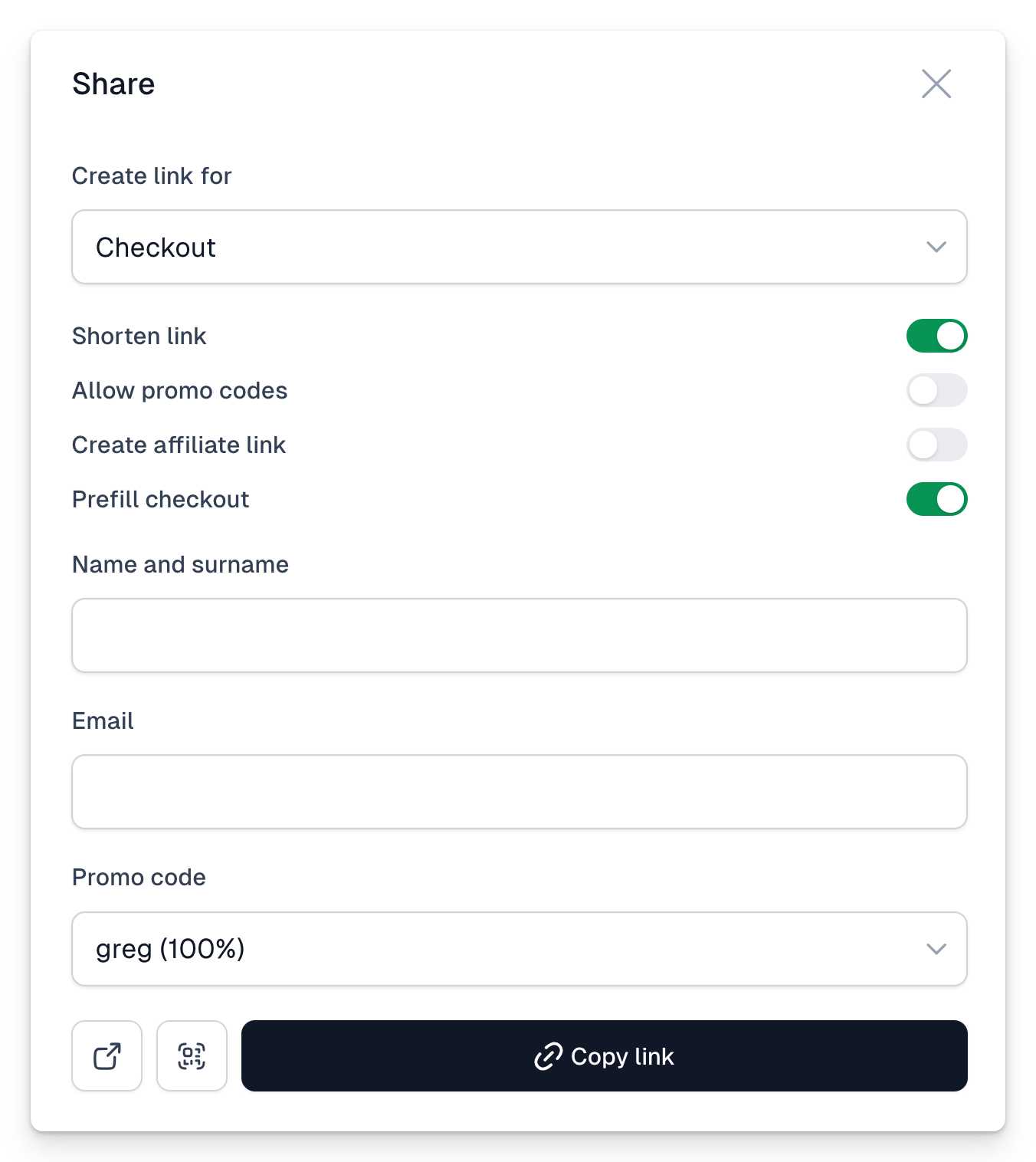
Generating a link from the Share menu
- You can use the Share menu and then check the option Show discount code field
- Alternatively, you can immediately fill this field with a specific code by selecting the Fill fields option and then indicating the appropriate code
Manually creating a link with a promotional code field
You just need to use the ?promo parameter added to the link. If you add only this parameter at the end of the link, an additional field for entering a discount code will appear in the cart. An example of such a link is:
https://app.easycart.pl/easy20/checkout/template-alley/project-planner-pro?promo
However, you can go a step further and immediately fill this field with a specific code. In this case, pass the specific discount code you want to use in the parameter, for example ?promo=promo_code_name. The link might look like this:
https://app.easycart.pl/easy20/checkout/template-alley/project-planner-pro?promo=100off
This way, it will be automatically applied to the cart, and the user won’t have to enter the code. This is a good way to conduct an email campaign, instead of providing the code, as it makes it easier for users to use it without having to copy and risk unnecessary mistakes.